Troubleshooting
PM-QUALITY database connect failed: SQL service and re-init steps
Short answer
PM-QUALITY cannot open its databases on the station's SQL Server instance, so data logging aborts even though the PLC link is green. Check in the Services console that the instance service is Running; then stop WinCC runtime, detach the PM-Server databases, archive the project, reopen it and choose Init data base on the PM-QUALITY node.
On this page
- What does the "connect to PM-QUALITY databases failed" message actually mean?
- Why does the green check mark in WinCC Tag Management not rule out a database fault?
- Is the SQL Server service running on the station?
- How do I detach, archive and re-init the PM-QUALITY databases?
- How do I prove the fix survived a reboot?
- What if the connect failure keeps coming back?
- Questions asked
That message is not about the PLC link. It means PM-QUALITY cannot open its databases on the station's SQL Server instance, so data logging is aborted at runtime start. Check the SQL Server instance service first, in the Services console, and only when it runs do the recovery in the PM-Server project: stop WinCC runtime, detach the PM databases, archive the project folder, reopen it and choose Init data base on the PM-QUALITY node. The green check mark in WinCC Tag Management proves the channel-to-PLC link and the heartbeat tag; it says nothing about the database layer, which is why a station with healthy tags can still abort every report it tries to write.
What does the "connect to PM-QUALITY databases failed" message actually mean? #
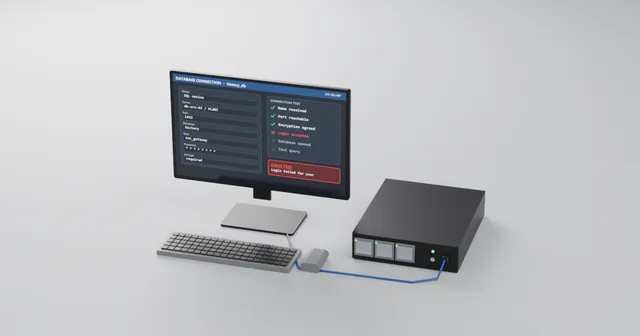
PM-QUALITY tried to open its report databases on the SQL Server instance, failed, and aborted data logging; the project files and the report files on disk are untouched, which is exactly why nothing looks changed the morning the failure appears. The runtime text reads:
Two failure classes produce it:
- The SQL Server instance service is stopped or faulted. It failed to start or stopped after a reboot, a patch or a crash; with no instance running there is nothing to connect to, regardless of project integrity.
- The PM databases are detached, offline or inconsistent. The database files sit on disk, but they are no longer attached to the instance, or the attachment registration inside the PM-Server project no longer resolves; runtime starts, tags look fine, and every report aborts.
WinCC's own storage layer documents this class of fault: the RT Professional troubleshooting list carries the error PCC_E_RECONNECT_TO_DATABASE_FAILED (0x80047001L), described as a connection to the database that cannot be established because reconnection to the database failed. Work the two classes in order: the service check in the next section costs almost nothing, and while the instance is down, the re-initialization step cannot succeed.
Why does the green check mark in WinCC Tag Management not rule out a database fault? #
The green check mark proves only that the WinCC channel keeps its link to the PLC alive; PM-QUALITY logging runs on a second path through the SQL Server instance, and that path can fail while the heartbeat between the station and the PLC still toggles normally. With no project change to point at, the usual triggers are environmental: an unexpected power loss or hard shutdown of the station, a Windows update that restarted or disabled the instance service, an antivirus or backup agent locking the database files during a scan, or the data volume filling up. A power-loss origin has its own documented recovery path, covered step by step in the walkthrough of WinCC losing database access after a power loss. Whatever the trigger, the split holds: healthy tags plus aborted logging isolates the fault to the SQL and PM side, and the next check tests it directly.
Is the SQL Server service running on the station? #
The SQL Server instance that hosts the PM databases must show Running before any repair step: find SQL Server (MSSQLSERVER) for a default instance or SQL Server (WINCC) for a named one in the Services console and start it if the status is Stopped. Set Startup type to Automatic so a station reboot brings the instance up on its own. If the service starts and stays running, reactivate WinCC runtime and retest logging before touching the project — a stopped service alone explains the whole message. If it will not start, or stops again within seconds, do not run the re-initialization yet; read the reason first:
- Windows Event Viewer, under Windows Logs and Application, holds the entries the instance wrote while it tried to start.
- The SQL Server ERRORLOG in the instance's LOG directory records file-open failures, permission errors and recovery problems.
- Free space on the volume holding the database and log files matters: a full disk prevents recovery and can leave databases offline even with the service running.
- Record the installed WinCC and Process Monitoring versions plus the SQL Server edition and instance name before escalating the case.
Worked example: the station rebooted overnight for patching; the entry SQL Server (WINCC) shows Startup type Automatic and Status Stopped; you start it, it reaches Running and stays there; a runtime reactivation brings the old reports back, and a test batch report starts and stops from the operator panel. The case closes at the service check, with no project surgery.
How do I detach, archive and re-init the PM-QUALITY databases? #
Stop WinCC runtime and close the PM-Server project before anything else, because detaching or re-initializing while the runtime holds connections to the databases risks fresh inconsistency; then work the sequence below in order and keep the archive step — it is your rollback point.
- Open the PM-Server project on the station where the databases live.
- Right-click PM-Server in the tree on the left and choose Detach databases; wait for completion, which releases the database files from the instance.
- Close the PM-Server project completely.
- Archive the project folder, including the .mdf and .ldf files; a zip archive is enough.
- Reopen the PM-Server project.
- Right-click PM-QUALITY and choose Init data base; this re-attaches and re-registers the PM-QUALITY databases with the instance — the action the error text itself requests.
- Close and reopen the project once, to confirm the attachment persisted.
- Activate WinCC runtime, start a test batch report from the operator panel, stop it, and confirm the record is retrievable.
If Init data base throws its own error, the cause is almost always upstream: the instance service is not running, the account behind the SQL services lacks NTFS rights on the database folder, or the .mdf/.ldf pair is locked by another process — antivirus, a backup agent, an open database management tool — or the files are corrupt, and the archive from step 4 is what you restore.
How do I prove the fix survived a reboot? #
A repair that survives a full station restart is a repair; one that only holds until the next power cycle points at a service startup dependency or a file-lock race, so run a deliberate reboot test before calling the case closed. After the restart, every row of this table must pass with nothing else changed:
| Check after the reboot | Expected result |
|---|---|
| Instance service | Running, set to start automatically, still running after the restart |
| Runtime activation | No connect-failed message; PM-QUALITY data logging starts |
| Old reports | Previously generated reports list again in the runtime report view |
| New batch report | Start and stop commands from the operator panel produce a retrievable record |
| Tag management | Green check mark retained; the heartbeat tag still toggles |
| Logs | No new SQL errors in Event Viewer or the ERRORLOG during a full activation cycle |
A single failing row sends you back to the service or lock checks, not into the project.
What if the connect failure keeps coming back? #
A recurring connect failure is an environment problem, not a project problem, so work startup ordering, file exclusions and volume space — in that order — before considering a reinstall on the station.
- Startup ordering. The instance service must reach Running before WinCC runtime activates; a delayed or manual start lets the runtime race the database and lose. Confirm the startup type is Automatic and prove the sequence with one controlled reboot.
- File exclusions. Keep on-access antivirus scanning off the directories holding the PM and WinCC database files, and schedule backup agents so they do not hold the .mdf/.ldf pair while the instance is recovering it after a restart.
- Volume space. Watch the volume that carries the database and log files; one that fills between maintenance windows reproduces the fault on schedule.
The shape of the fault — survives restarts, clears only after an explicit re-initialization — is not unique to PM-QUALITY either; a web server that hangs until its power-up re-init runs is the same pattern documented for a different device. Close each case by the class you proved: service stopped and starting cleanly — start it, retest, done; service healthy but connect failing — detach, archive, re-init; re-init erroring — repair the upstream cause or restore the archive; failure returning — fix startup ordering and file locks, then re-verify with a reboot test.
Questions asked
Where do I check the SQL Server service when PM-SERVER runs on a separate server station?
On that server station, not on the operator PC. Open the Services console there and look for the instance the PM-Server project uses: SQL Server (MSSQLSERVER) for a default instance or SQL Server (WINCC) for a named one. The runtime station only reports the failure; the instance that must show Running is the one the databases are attached to, and the same startup-type, ERRORLOG and free-space checks apply there.
Does the same order of checks apply in a PCS 7 environment?
The order does: prove the SQL Server instance runs, then re-initialize the Process Monitoring databases, keeping the archive step before the init. Labels and menu locations differ between Process Monitoring versions and between a standalone PM-Server project and other environments, so run the detach and init commands from the project tooling of your installed version instead of assuming identical menu names.
What usually correlates with the sudden onset when no project change was made?
Check Windows update history, backup and antivirus scan windows, and power events in the event log around the time the reports stopped. A patch cycle that restarted the instance service, a backup agent holding the database files during recovery, or a hard shutdown during a write can each leave a healthy database detached or blocked, with no change to the project at all.
Why is the SQL ERRORLOG better than the Windows application log for this fault?
The instance's own ERRORLOG, in the instance's LOG directory, names the database it could not open and gives the reason: a file-open failure, a permission denial on the database or log file, or a recovery problem. The Windows application log tells you that the service stopped; the ERRORLOG tells you why one database stayed offline after the service came back.